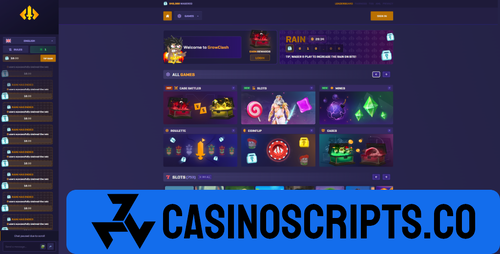
Robloxclash is a premium, fully-functional Case Opening platform featuring a stunning UI with extensive gaming options. This comprehensive script includes everything needed to launch a professional roblox Case Opening site.
Features
Case Battles - Competitive multiplayer case opening
Extensive Slot Games Library - 50+ provider-backed slots
Crash Game - Real-time multiplier betting
Mines - Strategy-based grid game
Roulette - Classic casino roulette
CoinFlip - Head-to-head coin flip battles
Case Opening - Loot box system with animations
The Clash - Competitive leaderboard system
Rain System - Reward distribution to active players
Jackpot System - Progressive jackpot functionality
Live Game Tracking - Real-time game results
Multi-Crypto Wallet - BTC, ETH, USDT support
Provably Fair System - Verifiable game outcomes
Responsive Design - Mobile and desktop optimized
User Profiles & Statistics - Comprehensive player tracking
Affiliate System - Built-in referral program
Requirements
VPS or dedicated server with 4GB+ RAM, Node.js 16+, MongoDB 5+, Redis, SSL certificate. Basic knowledge of Node.js and React required for deployment.





.thumb.png.2527d167578d833c9b3619d6cb41da1b.png)